

Prerequisites
- Windows 10 or later (64-bit)
- 8 GB RAM (16 GB+ recommended)
- 10 GB disk space (100 GB+ recommended)
Install VectorAI DB
1
Run the installer
Download the VectorAI DB installer (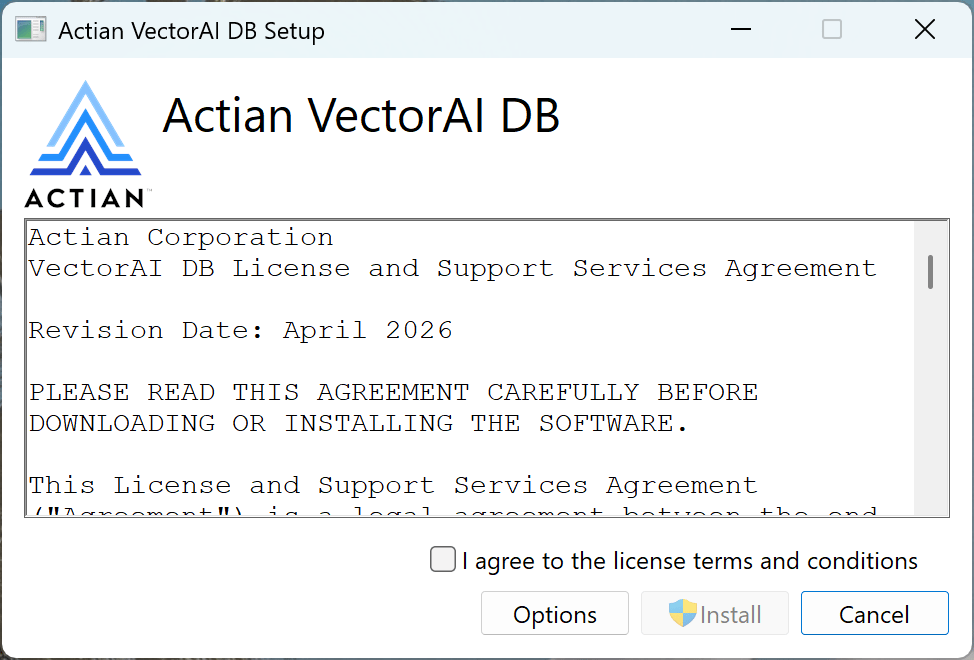
ActianVectorAIDB-Setup.exe) from the Actian downloads page and double-click it to launch the setup wizard.The wizard opens to the license agreement screen.2
Accept the license agreement
Read the VectorAI DB License and Support Services Agreement, then check I agree to the license terms and conditions.The Install button becomes active once you accept.
3
Choose an install location (optional)
Click Options to open the install location dialog. Enter a path directly or click Browse to select a folder, then click OK to confirm.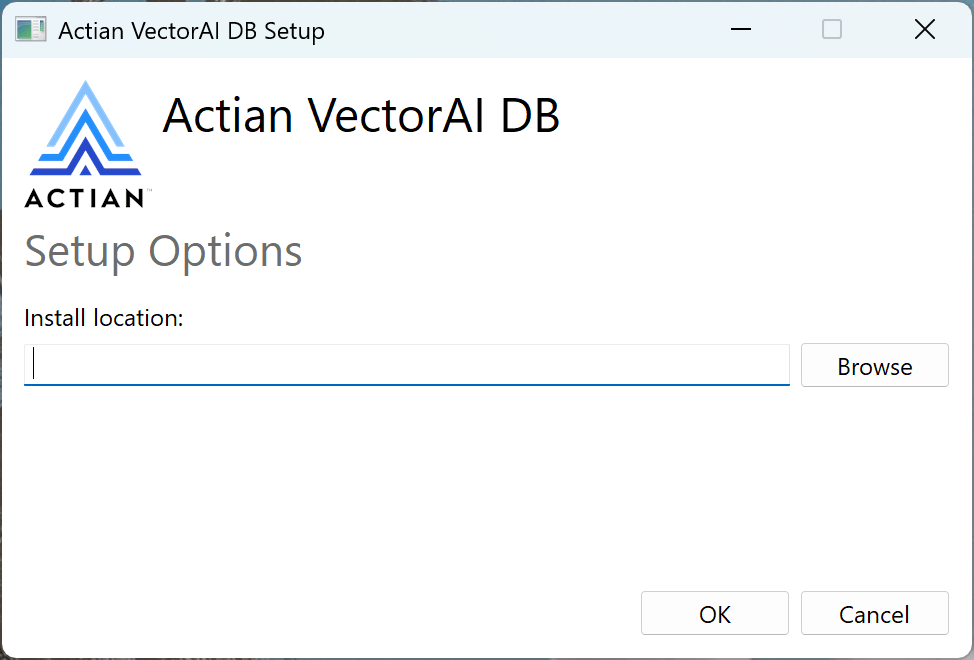
4
Click Install
Click Install. The wizard copies files and registers both Windows services.When setup finishes, the wizard shows Installation Successfully Completed.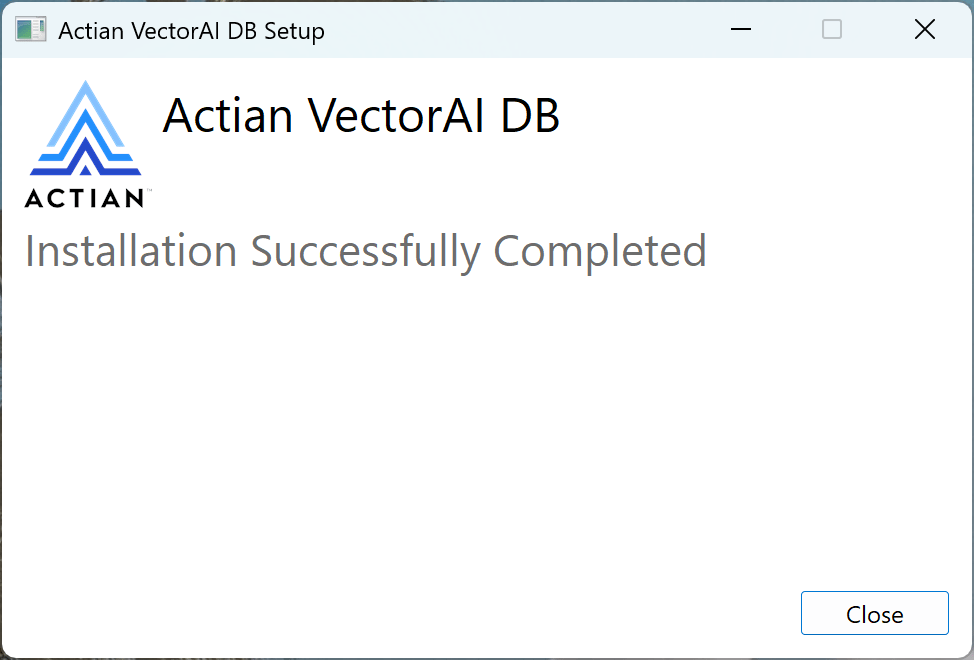
5
Click Close
Click Close to exit the wizard. Both services start automatically and no reboot is required.
localhost:6573. The Local UI is available at localhost:6575.
Verify installation
The verify commands below use PowerShell. Run them in a PowerShell terminal after installation.
Troubleshooting
Check service status
Uninstall
Go to Settings > Apps > Installed apps, find Actian VectorAI DB, and select Uninstall. The uninstaller removes the application binaries and stops the services. Data inC:\ProgramData\Actian\VectorAI DB\ is not removed.
Next steps
Quickstart
Create your first collection, insert vectors, and run a search.
Core concepts
Understand the data model, architecture, and how search works.
Python SDK
Install and configure the Python SDK.